
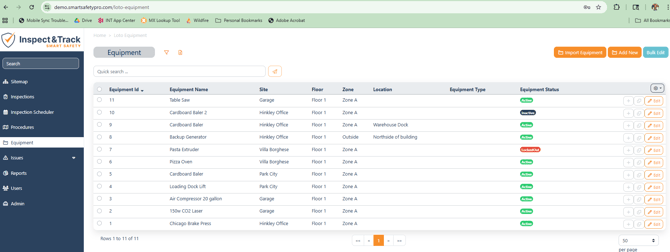
On the Equipment Screen, you will see a list of all the equipment in your scope, the location of that equipment, the equipment type (if configured), and the equipment status.
When adding a new piece of equipment manually, you must select a unique equipment name and the location (site, floor, and zone) of that piece of equipment. The equipment name must only be unique for each zone in which the equipment is placed. For example, if you have 3 buildings in your system, and a trash compactor at each building, then you can use "Trash Compactor" as the equipment name for each piece of equipment. Or if you have one building and two zones, you can use the same equipment name once in each zone. However, we recommend unique names so that it is always clear which piece of equipment is being used or worked on.
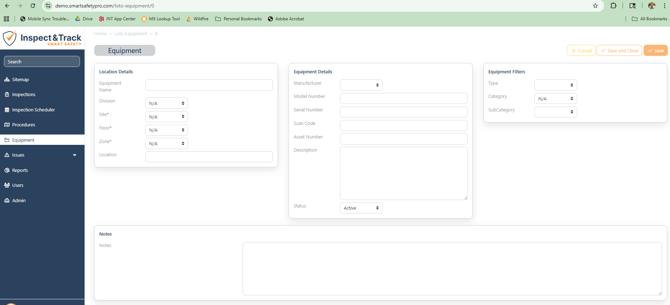
The Equipment Status is defaulted to active when adding new equipment. Other options include:
-
Inactive (this means the equipment is still in the facility but out of use)
-
Locked Out (this means the equipment has been de-energized and is being serviced)
-
Missing (this means that the equipment is not at the proper location and needs to be found and moved)
-
Out of Service (this means the equipment has bee retired and is no longer in the facility)
The Scan Code field is optional. If you already have scan codes assigned to your equipment, you can associate the scan code here. When you scan the code with your mobile app, you will be taken directly to the Equipment Status Screen and see a quick overview of the equipment status, the Lockout Procedure status for that equipment (if using the LOTO module), any tasks available for that piece of equipment, all associated energy sources, and any open issues.
The other fields on the Equipment Record screen are for enhanced filtering and reporting.
- Description: This field is used on the LOTO procedure report header to provide users with more context.
- Model Number, Serial Number, and Asset Number: These fields are for additional specifications when tracking equipment within your system.
- Equipment Type, Category, and SubCategory are all configurable dropdowns that can be customized in your system to meet your organizational and reporting needs.